
HP · 2 MIN READ
HP printer prints a blank sheet after a Word document
Use Print Preview to tell whether Word added the last page before you change settings on your HP printer.
Choose a symptom or model family for checks you can perform at your printer.
Use Print Preview to tell whether Word added the last page before you change settings on your HP printer.
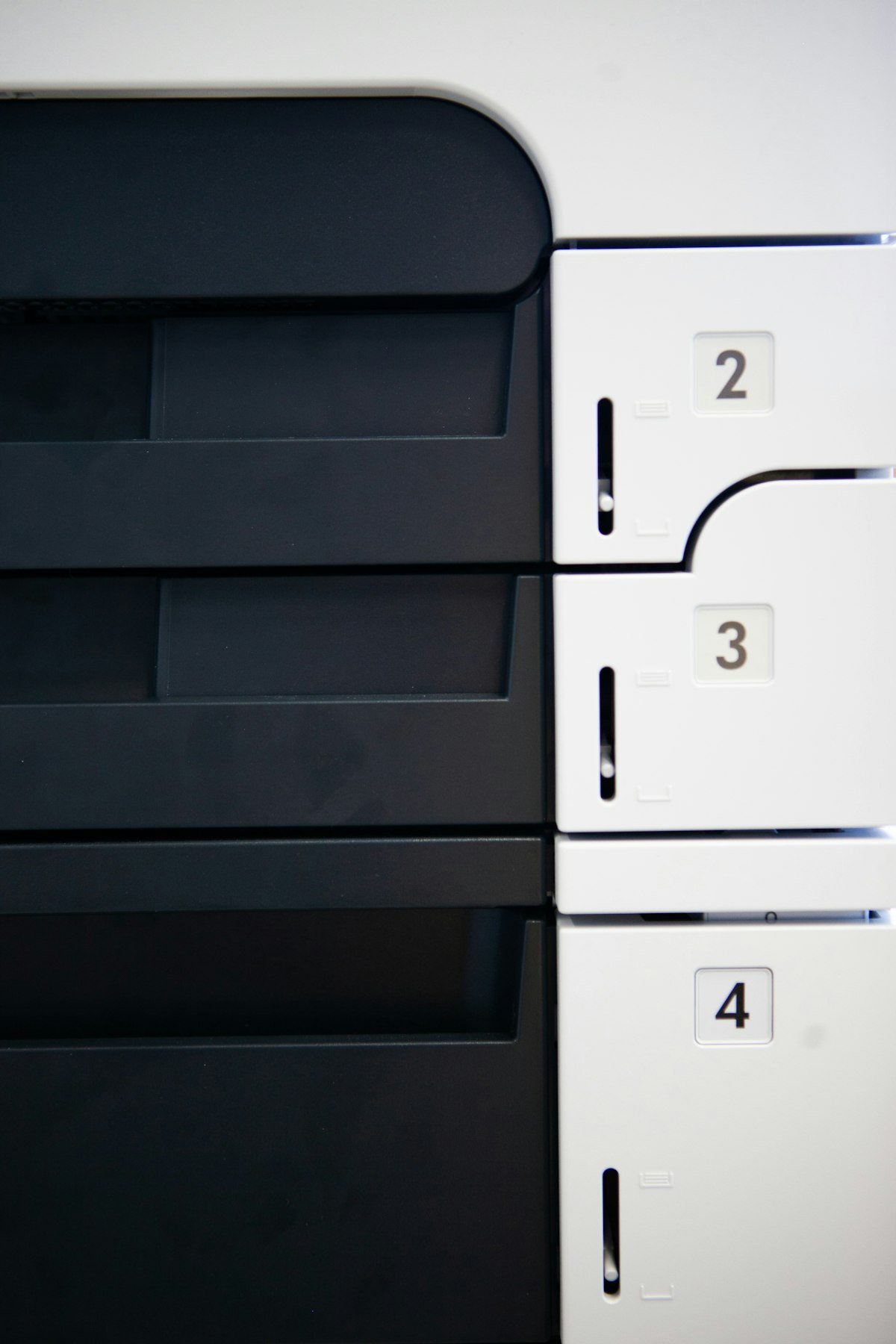
A change in layout can shrink every page even when the paper size is correct. Use a numbered test file to find where the layout was applied.
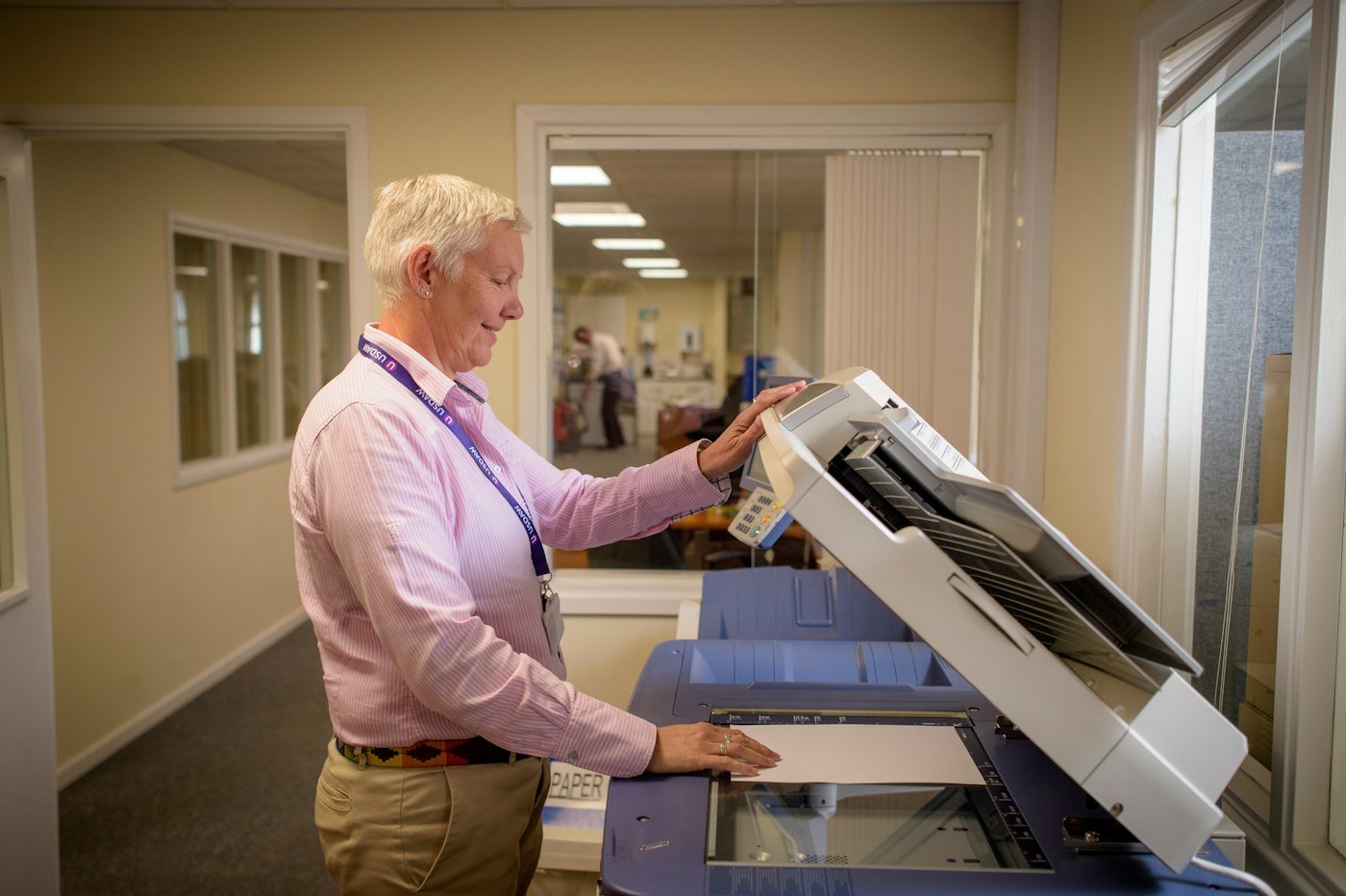
A clean scan and a dark copy point to different settings. One original and two outputs can help you decide where to begin.
Find out whether one print job requested several copies or several jobs reached the queue. The remedies are different.
Pages leaving the printer in reverse order may stack correctly in the output tray. Test with three numbered sheets before changing a setting.
A wide table or online receipt can look fine on screen and still lose a column on paper. Check the browser preview before adjusting the printer.
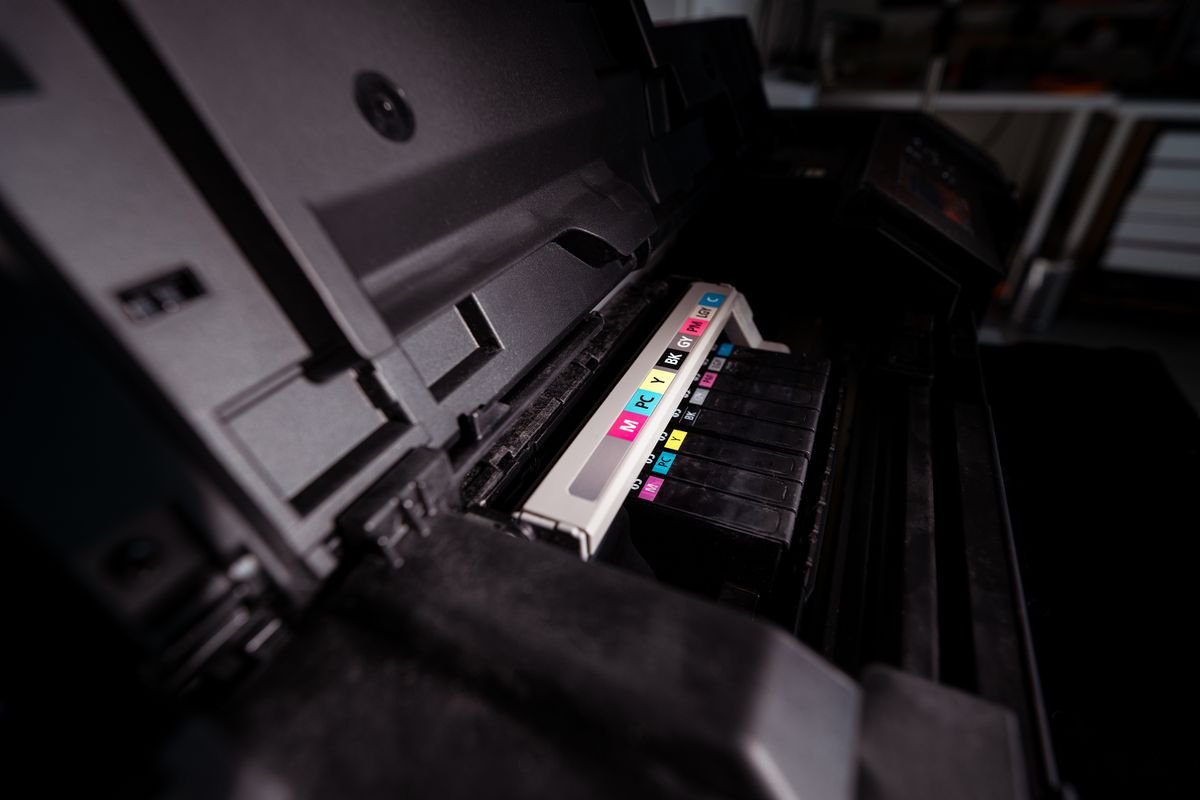
A tray can reverse the sheet as it feeds. A pencil mark on ordinary paper lets you trace the path before using another photo sheet.
Two similar queue names can conceal two different destinations. Identify the working one before removing or renaming anything.
One extra sheet at the end of a report calls for a different check from two sheets travelling through the printer together.
A two-page test will tell you which binding edge to use before you commit a whole booklet to paper.
A full paper tray can still be the wrong match for the document. Trace the size from the file to the printer.
Use a colour copy and a small image to find out whether the colour disappears in the printer, the queue or one application.
Follow one named document through the queue to find the point where cancellation or printing stalls.
A face near the edge of a photo can disappear when a borderless print fills the sheet. Compare the crop before using another sheet of photo paper.
Use a two-page trial to learn when to add the next original and when to finish the PDF.
If the printer takes plain paper when you expected glossy stock, check the feed source the job actually requested.
Find a smaller scan setting that keeps signatures, small text and relevant colour details readable.
The machine may be waiting for one sheet in a different feed path. Check the job before refilling the tray.
Compare a plain-paper test with an unused label sheet to distinguish an incorrect margin from scaling drift.
Check the file type behind the scan shortcut and combine the pages before ending the job.
Compare the first-page delay for a plain document and an image-heavy page before changing the printer connection.
A simple word and arrow can reveal whether reversal happens in the source image, the application or the printer preset.
Use the preview frame to find where the receipt disappears before changing the PDF output settings.
Measure one printed feature to see whether the PDF was scaled or its edges fell outside the printable area.
A short mixed stack lets you test blank-page removal without losing a faint note on the back of a sheet.
Repeated jams are rarely bad luck. Here are the five usual causes and what you can safely check before calling a technician.
Faint lines and missing colours usually mean dried ink in the printhead. Here is how to check it safely and when to stop.
A printhead error on a PIXMA can mean a dirty contact, a seating problem or a failed head. Here is how to tell the difference.
The drum warning does not always mean the drum is worn out. Check print quality and the corona wire first.
Most offline printers are working fine; the computer just cannot find them. A changing IP address is the usual cause.
Repair makes sense more often than people think, especially for laser printers. Here is how to decide.
A printhead message on an OfficeJet Pro can come from a seating fault, dirty contacts or a worn head. Here is how to narrow it down.
Lines that appear on copies but not on prints almost always come from the scanner, not the print engine. Here is how to find the cause.
A printer that pulls nothing, or pulls sheets crooked, usually has a paper, guide or roller issue. Work through these checks first.
Feeder jams on Brother all-in-ones usually come from worn rollers, the wrong originals or a small object stuck in the path.
Faded laser prints are often a setting or a toner issue. If not, a worn transfer roller or fuser may be the cause.
This message means the printer's waste ink store is full. The safe fix is replacing the pads or maintenance box, not just clearing the warning.