Brother
Brother printer produces extra copies of the same document
Find out whether one print job requested several copies or several jobs reached the queue. The remedies are different.
Two Brother entries with almost identical names can lead to different places. Work out whether the job should travel over USB, Wi-Fi or Ethernet before changing a driver.
Read the complete HL, DCP or MFC model number from the machine. Look it up in Brother’s manuals to see which interfaces it supports. If you use USB, connect directly to the computer for the first test and follow the installer prompt about when to attach the cable.
For a network model, print the Network Configuration Report using the steps for that model. Look for a current IP address on the interface you actually use. If the machine has no usable address, restore its connection to the router before trying to repair the Windows queue.
Open the selected Brother queue and send a one-page document with a recognisable name. Watch which queue receives it. If it stays paused, resume that queue. If another computer prints successfully over the same network, focus on the affected computer’s printer entry and matching Brother software.
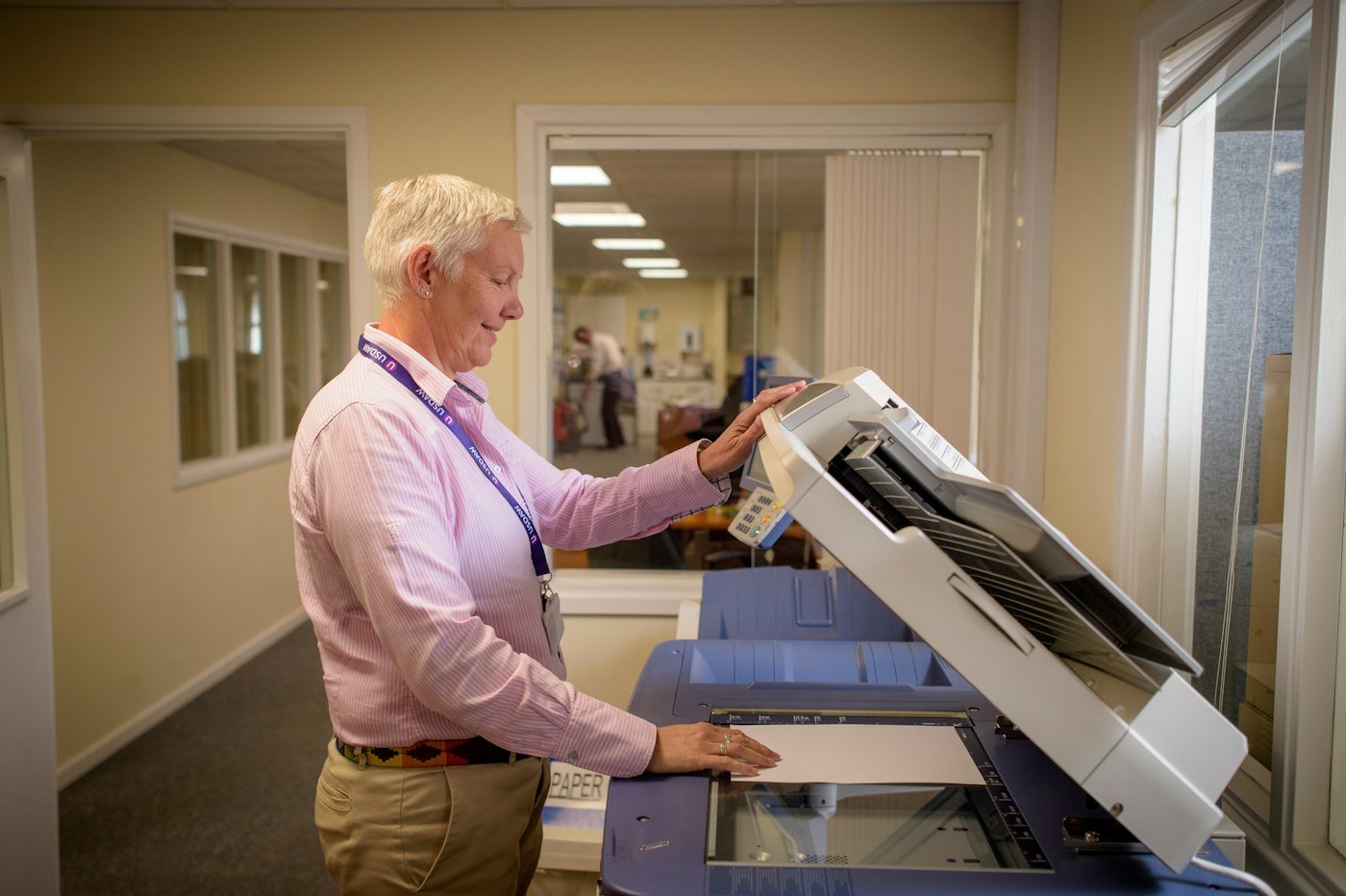
Run a flatbed copy at the machine, then try a scan from the computer with the scanning software listed for your model. If copying succeeds, confirm that the computer selected this Brother scanner and the intended USB or network connection. Record the exact error if the scan fails.
For a follow-up, include the model number, device and operating system, connection type, and the result of the first test that failed.
Start with the wireless test report.
Distinguish Wireless Direct from router Wi-Fi.
Match the print queue to the connection.
Compare a network report with a nozzle check.
The machine may be waiting for one sheet in a different feed path. Check the job before refilling the tray.
Compare a plain-paper test with an unused label sheet to distinguish an incorrect margin from scaling drift.
Check the file type behind the scan shortcut and combine the pages before ending the job.
Compare the first-page delay for a plain document and an image-heavy page before changing the printer connection.
Find out whether one print job requested several copies or several jobs reached the queue. The remedies are different.
Two similar queue names can conceal two different destinations. Identify the working one before removing or renaming anything.