Windows keeps sending jobs to my old Brother printer
Two similar queue names can conceal two different destinations. Identify the working one before removing or renaming anything.
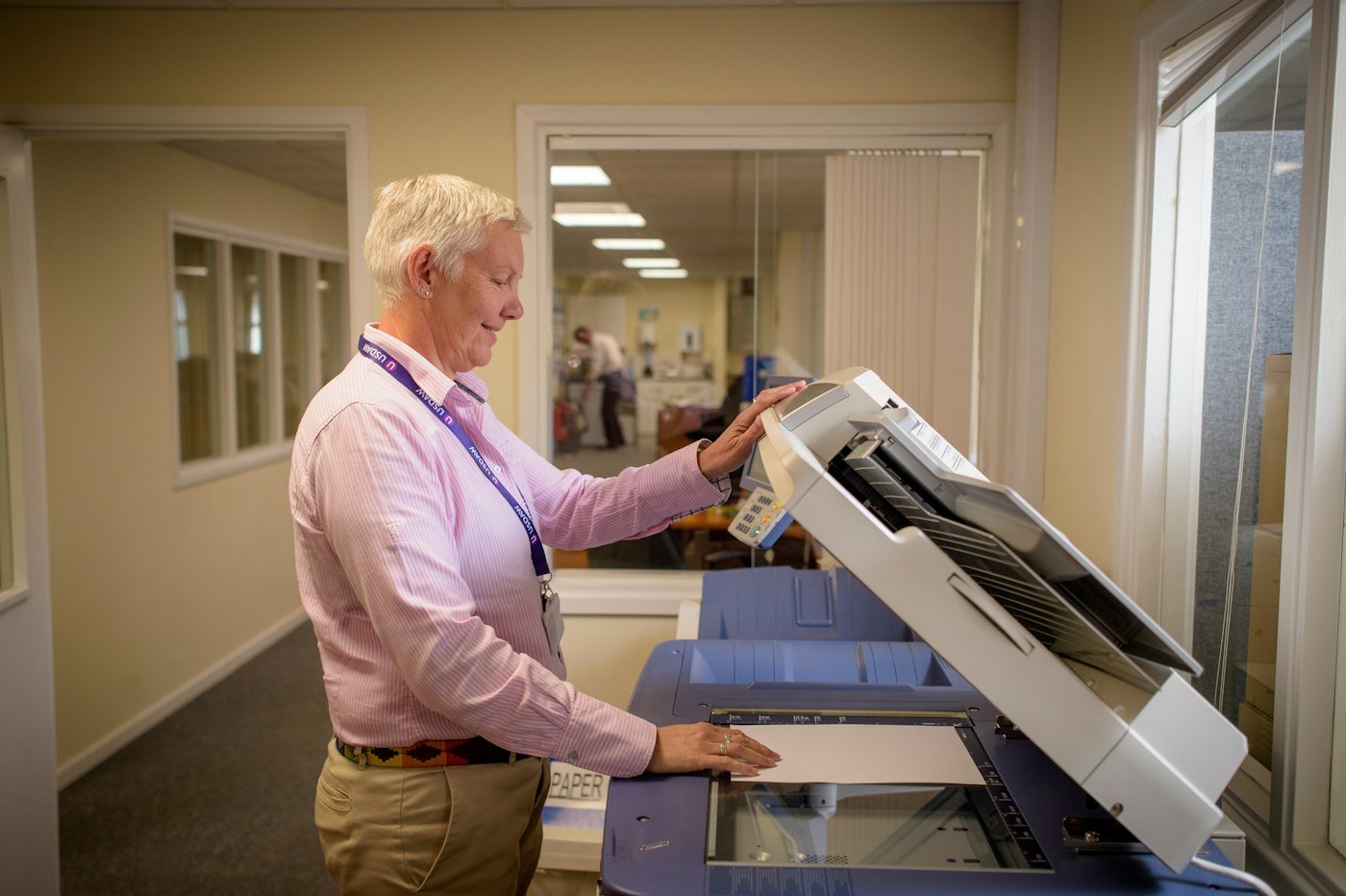
Identify the intended machine
Read the full model number on the printer you want. In Windows Printers & scanners, compare the installed entries with that model. USB and network entries for the same unit can look alike, so note which connection you intend to keep using.
Test from the application
Select the intended queue explicitly and send a page with a unique name. Watch its queue and the physical output. If the page comes out of the right machine, record the exact queue name. A successful Windows test page alone does not prove that your usual application selected it.
Keep the choice consistent
Check the default printer setting and the destination retained by the application. Reopen the application and print another one-page test. On a managed office computer, ask the administrator before removing a shared printer that another workflow may still use.