Canon
Canon PIXMA makes dark copies of a clear original
A clean scan and a dark copy point to different settings. One original and two outputs can help you decide where to begin.
Canon PIXMA TS3500 series on Windows or Mac: if a phone can print but your computer cannot find the printer, check which network the printer actually joined. Load three plain Letter or A4 sheets and press Information once. On the report, read Connection (3-2-5) and SSID (3-2-6) under Infrastructure. Active plus your router’s network name means you can test the computer on that same network. Inactive or an old network name means the printer needs wireless setup first. Wireless Direct has a separate section and can work while the router connection is down.
After any change, send one page from the computer. If it prints, you have verified that computer’s path to the PIXMA. Keep the report private because it can include a Wireless Direct password. Read Canon’s network report field guide.
A PIXMA can print from a phone while staying invisible to a laptop. Start by checking how the phone reached the printer. That one detail changes the next step for both printing and scanning.
Open the phone’s Wi-Fi settings immediately after a successful print. If it joined the Canon printer’s own network using Wireless Direct, you have tested a direct connection. For household printing through a router, set up the PIXMA on that router and reconnect the phone to your usual Wi-Fi.
Enter the full model at Canon’s setup site. Similar-looking TS and TR models have different controls. Choose the connection you intend to keep, follow the model’s prompts, then print one page with the phone and laptop on the same regular network.
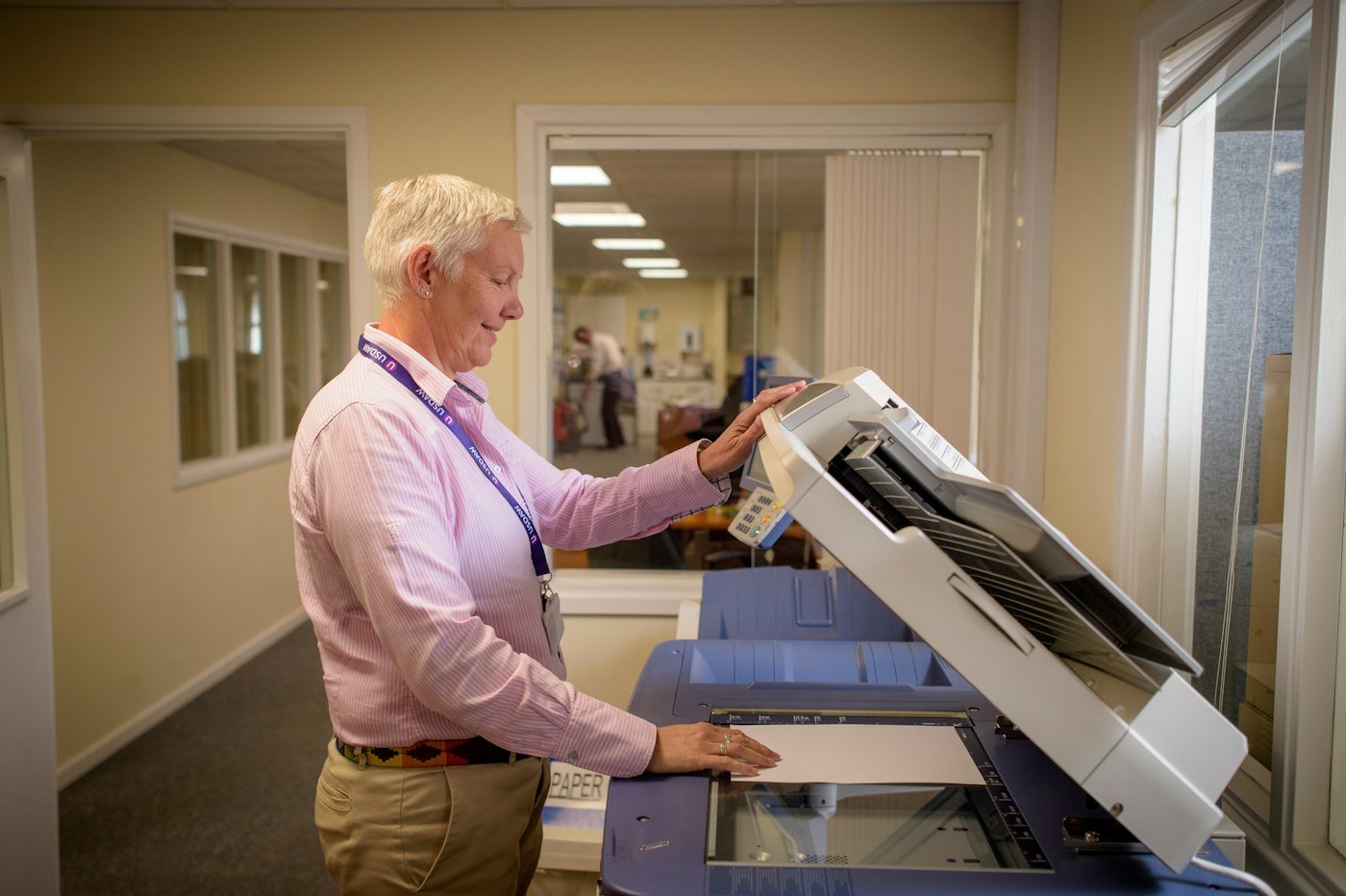
Make a copy using the controls on the printer first. A clear copy confirms the scanner can capture an original. Next check the scanner software Canon lists for your model and system. Where IJ Scan Utility is supported, select the network scanner that matches the printer and try one flatbed scan.
On a model with an automatic document feeder, copy the same original from the flatbed and then through the feeder. A line appearing only on the feeder copy points toward the narrow strip of scanner glass used by the feeder. Follow the model manual for cleaning. If both copies are clear, compare them with a print from a saved file.
For a follow-up, include the model number, device and operating system, connection type, and the result of the first test that failed.
Start with the wireless test report.
Distinguish Wireless Direct from router Wi-Fi.
Match the print queue to the connection.
Compare a network report with a nozzle check.
A face near the edge of a photo can disappear when a borderless print fills the sheet. Compare the crop before using another sheet of photo paper.
Use a two-page trial to learn when to add the next original and when to finish the PDF.
If the printer takes plain paper when you expected glossy stock, check the feed source the job actually requested.
Find a smaller scan setting that keeps signatures, small text and relevant colour details readable.
A clean scan and a dark copy point to different settings. One original and two outputs can help you decide where to begin.
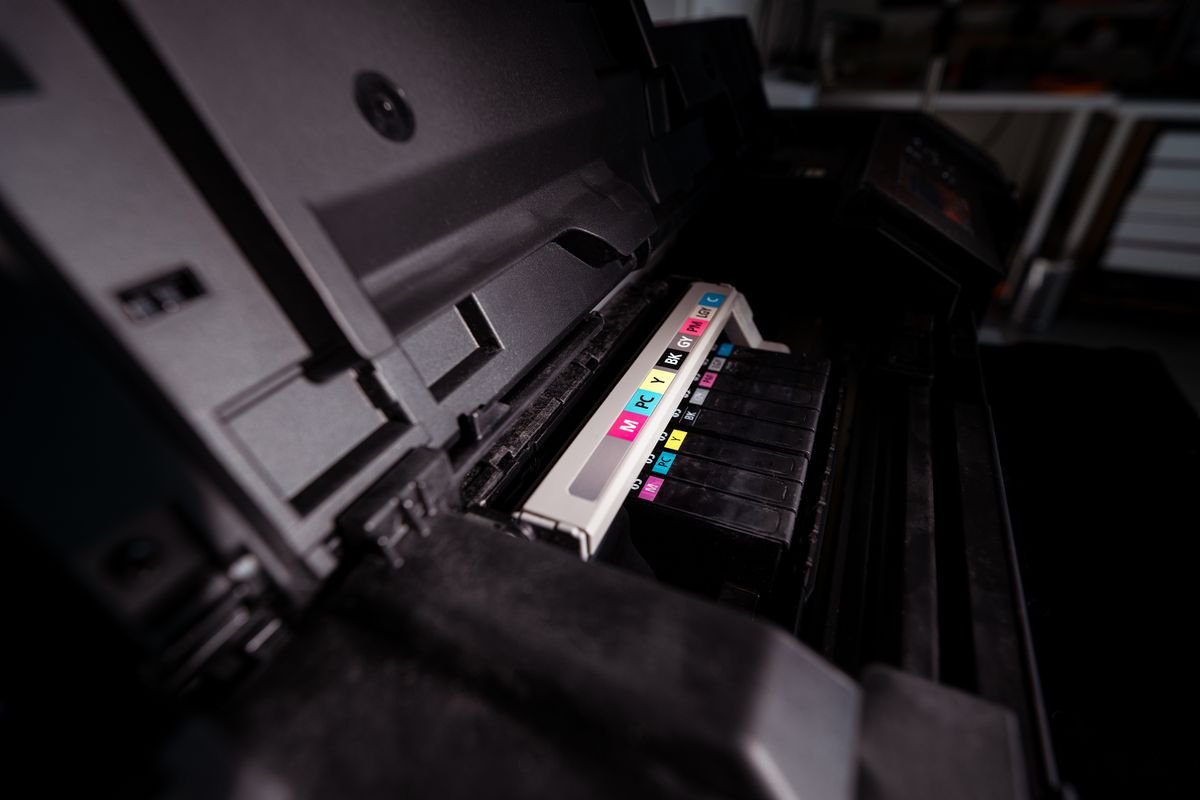
A tray can reverse the sheet as it feeds. A pencil mark on ordinary paper lets you trace the path before using another photo sheet.